|
Working Online
You must work with One-Line Diagram Kit in online mode to open and save diagrams on your ISG.
To work in online mode:
-
After starting the One-Line Diagram Kit application, enter your ISG URL, user name, and password. If your organization uses Active Directory for authentication, select the Active Directory check box. Your administrator can help you with the appropriate URL and login information. After entering this information, click the Login button.
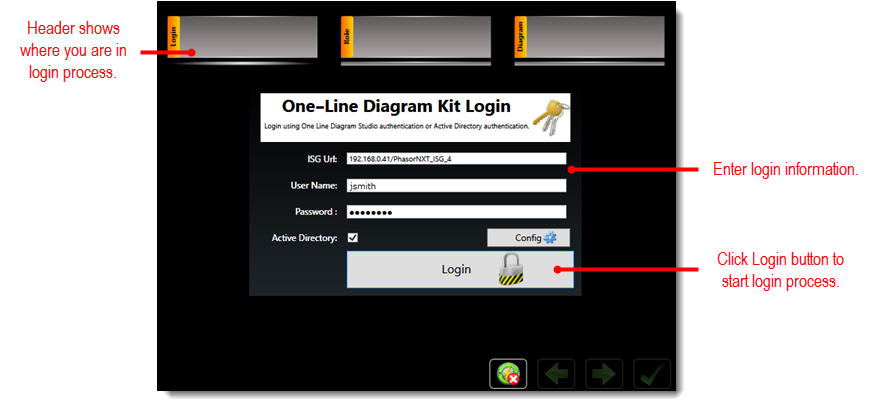
Note: After a successful login, the system remembers the most recent URL entered, so for future logins you only have to provide your credentials.
-
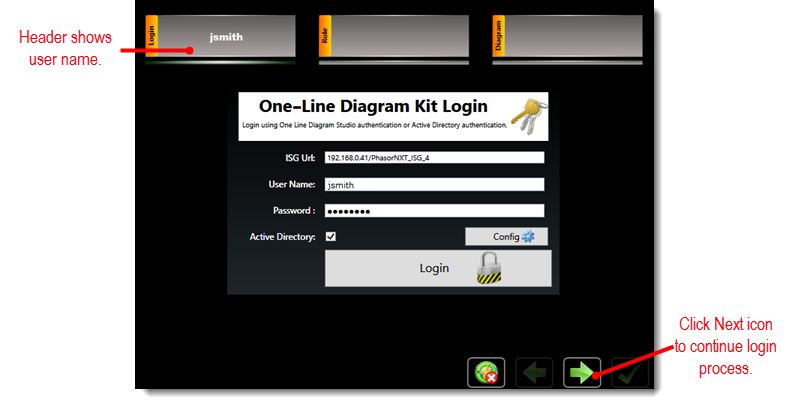
When you enter a valid user name and password, the next icon (
 ) becomes available. Click
it to continue to the Select a Role
screen.
) becomes available. Click
it to continue to the Select a Role
screen.
Note:
At any time during the login sequence you can click the go back icon ( ) if you need to return to a previous
login screen.
) if you need to return to a previous
login screen.
-
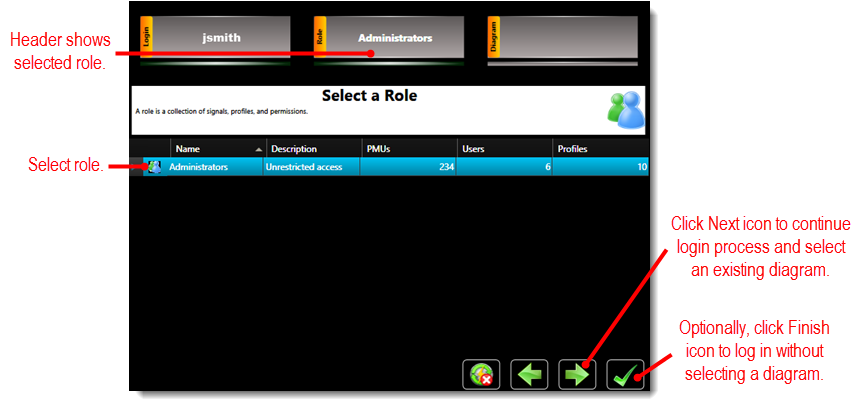
The Select a Role screen includes the list of roles your administrator has made available. Click a role to select it. With the role selected, click the next icon (
)
to continue to the Select a Diagram
screen if you want to open an existing diagram. Alternatively, you
can click the finish icon ( ) instead
of the next icon to bypass the Select a Diagram
screen and skip the rest of the steps in this procedure. If you bypass
the Select a Diagram screen, the system
automatically opens a blank canvas, where you can create
or open a diagram.
) instead
of the next icon to bypass the Select a Diagram
screen and skip the rest of the steps in this procedure. If you bypass
the Select a Diagram screen, the system
automatically opens a blank canvas, where you can create
or open a diagram.
-
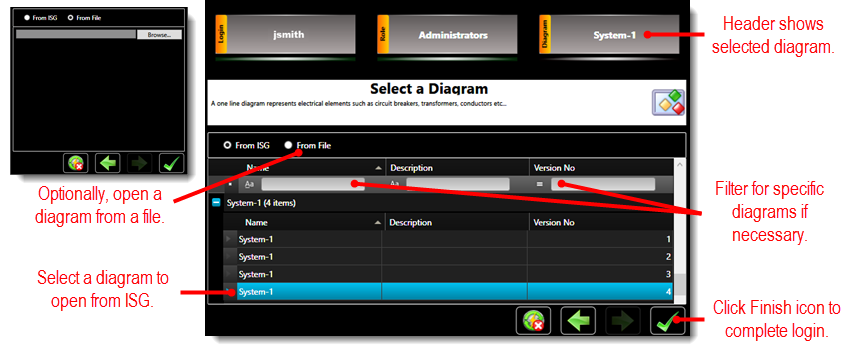
The Select a Diagram screen includes the list of existing diagrams available on your ISG. Click a diagram to select it. If the diagram has multiple versions, select the version you want to work with. If you have a large list of diagrams, you can use a filter to find a specific diagram to select. Alternatively, you can select the From File option to browse for and select a diagram from a local file instead of your ISG. After selecting a diagram from your ISG or local file, click the finish icon (
) to open the system
with the selected diagram.
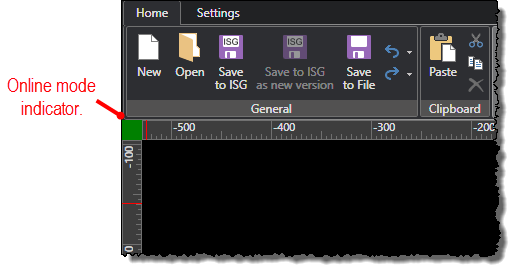
When the main window opens, the selected diagram appears on the canvas. If you did not select a diagram, the canvas will be empty, allowing you to create or open a diagram. You can confirm you are working online (as opposed to working offline) by the green online mode indicator at the top-left corner of the canvas.